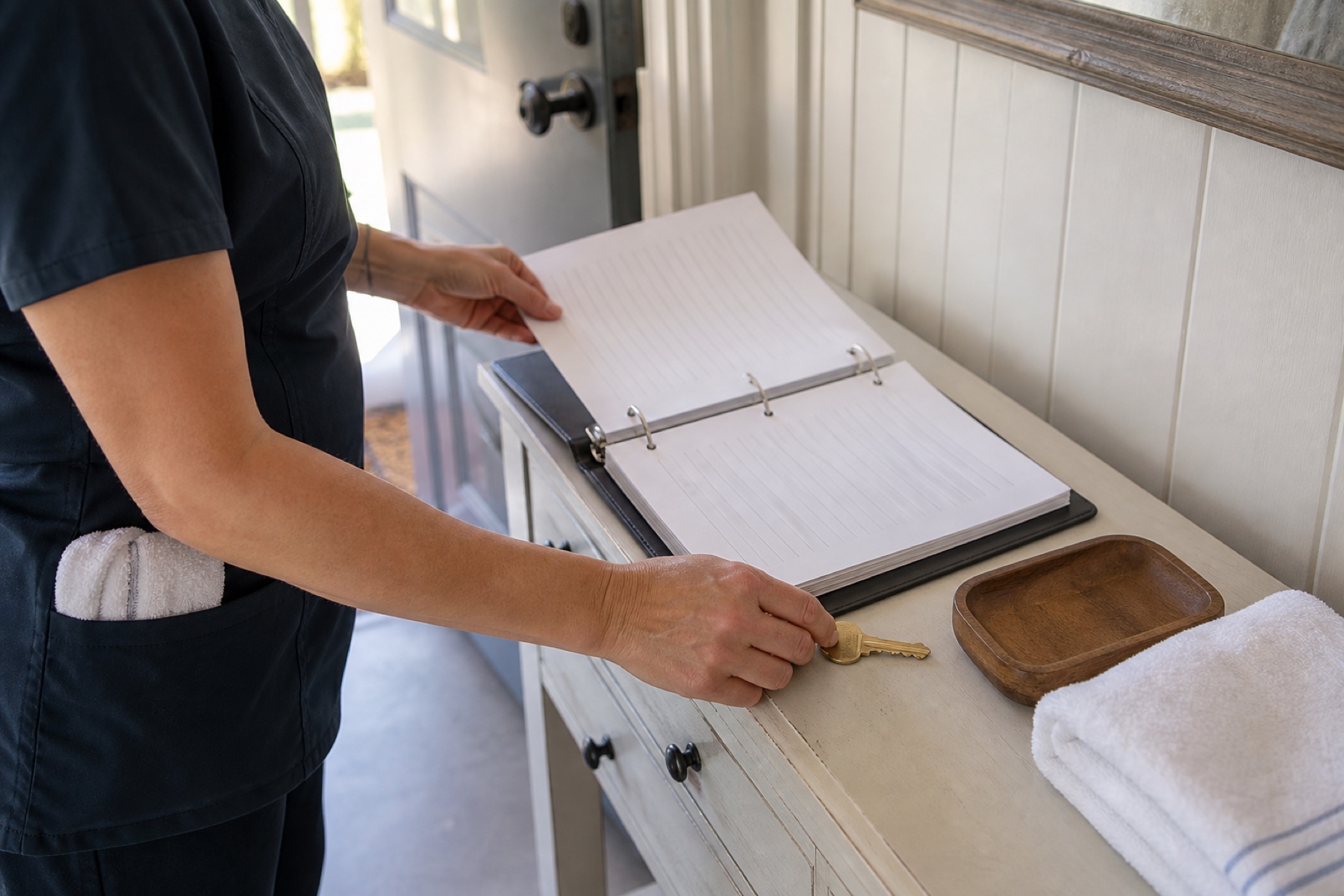
Access instructions are essential for turnover cleaning, but they often contain sensitive details—guest names, alarm codes, WiFi passwords, lock combinations—that shouldn't live in permanent property notes or be shared with every team member. The goal is to get the right information to the assigned cleaner at the right time, without exposing unnecessary guest or security details to people who don't need them.
A practical approach separates permanent property instructions (how to operate the dishwasher, where supplies are stored) from one-time access details (today's gate code, which door to use). This separation protects guest privacy, reduces security risk, and makes it easier to audit who has seen sensitive information.
Separate Permanent Instructions from One-Time Access Details
Permanent property instructions describe how to clean the property itself: appliance settings, supply locations, areas that need special care, and standing requests from the guest. These instructions are useful across many cleanings and can be reviewed by any team member who works at that property.
One-time access details are specific to a single cleaning: today's gate code, which door is unlocked, the alarm code for this guest, parking instructions, or a guest's phone number. These details should not be stored in permanent property notes. Instead, send them directly to the assigned cleaner shortly before the cleaning, using a secure channel.
PlanAhead lets you keep permanent property instructions separate from one-time cleaning details. When you create or edit a cleaning, you can add task lists and property instructions specific to that job. The assigned cleaner sees these details in the cleaning record, not in a shared property note that persists for months.
- Review your current property notes and identify which details are permanent (appliance care, supply locations) and which are one-time (today's access code, guest contact info).
- Move permanent details into a property-instruction template that you reuse across cleanings.
- For each new cleaning, add one-time access details directly in the cleaning record, not in shared property notes.
- Delete or redact one-time details from property notes after the cleaning is complete.
Use Secure Messaging for Sensitive Access Information
Sending access codes or alarm details through email, text, or unencrypted channels creates a record that persists and can be intercepted. Workspace messages in PlanAhead are tied to the specific cleaning and the assigned cleaner, reducing the number of people who see the information and making it easier to track who has access.
When you assign a cleaner to a turnover, send access instructions through the workspace message thread for that cleaning. The assigned cleaner receives the message in context, and the conversation stays linked to that job. If the assigned cleaner changes (for example, a backup cleaner accepts coverage), you can update the message or send a new one to the new assigned cleaner.
Avoid placing unnecessary guest names, phone numbers, or financial details in cleaning notes or messages. If the cleaner needs to contact the guest, provide a single point of contact—such as the property manager's phone number—rather than exposing the guest's direct information.
- When you assign a cleaner to a turnover, use the workspace message feature to send access instructions to that cleaner only.
- Include only the access details the cleaner needs for that specific job (gate code, door, alarm code, parking).
- Do not include guest names, phone numbers, or financial information unless absolutely necessary.
- If the assigned cleaner changes, send updated access instructions to the new assigned cleaner.
Audit and Remove Access After the Cleaning
Once a cleaning is complete, the assigned cleaner no longer needs access to that guest's information. Leaving old access codes, alarm details, and guest contact information in your property notes or message history creates unnecessary security risk. A former cleaner, a team member who no longer works with you, or someone who gains unauthorized access to your account could see outdated information.
After each turnover, review the cleaning record and remove or redact one-time access details. If you use permanent property instructions, those can stay in place. One-time details should be deleted or replaced with a note that the cleaning is complete.
If a cleaner leaves your team or you stop working with a crew, remove their access to your workspace. In PlanAhead, you can manage workspace roles and remove people who no longer need to see your properties, schedules, or messages. This prevents former team members from viewing old cleanings that contain sensitive guest information.
- After each cleaning is complete, review the cleaning record and delete one-time access details (codes, alarm information, guest contact info).
- Keep permanent property instructions in place for future cleanings.
- If a cleaner or team member leaves, remove them from your workspace to prevent access to old cleaning records.
- Periodically audit your workspace members and confirm that everyone listed still needs access to your properties.
Plan for Access Failures and Backup Communication
Even with clear instructions, access problems happen: a code doesn't work, a door is locked unexpectedly, or the cleaner can't find the right entrance. If the assigned cleaner can't reach you or the property manager, the turnover stalls and guests may arrive to an uncleaned property.
Before the cleaning day, establish a backup contact plan. Identify a property manager, co-owner, or trusted team member who can troubleshoot access issues if the primary contact is unavailable. Share this backup contact information with the assigned cleaner in the cleaning record or in a permanent property instruction (not a one-time message).
If an access problem occurs, the cleaner should contact the primary contact first. If that fails, the cleaner can reach the backup contact. Document the problem in the cleaning record or in a workspace message so that you and the team can learn what went wrong and prevent it next time.
- Identify a backup contact for each property (property manager, co-owner, or trusted team member).
- Add the backup contact information to the permanent property instructions, so every assigned cleaner knows who to call if access fails.
- Instruct the cleaner to contact the primary contact first, then the backup contact if needed.
- After an access failure, document what went wrong in the cleaning record so you can audit and fix the problem.
Verify Access Instructions Before Assigning the Cleaning
Before you assign a cleaner to a turnover, verify that your access instructions are current and correct. An outdated gate code, a wrong door, or an alarm code that changed since the last cleaning will cause delays and frustration.
If you manage multiple properties or work with a booking channel, your property information may change frequently. Before each cleaning, confirm that the access details you're about to send are accurate. If you're unsure, contact the property manager or guest directly to verify.
PlanAhead's schedule view helps you see upcoming cleanings and time-sensitive turnover windows. Use this view to plan ahead and verify access details before the cleaning day arrives. If you notice that a cleaning is coming up soon and you haven't confirmed the access information, reach out to the property manager or guest now, not the morning of the cleaning.
- Before assigning a cleaner to a turnover, verify that your access instructions are current and correct.
- If you manage multiple properties, check the property details in your booking channel or property-management system to confirm the access code, door, and alarm information.
- If you're unsure about any access detail, contact the property manager or guest to verify before the cleaning day.
- Use PlanAhead's schedule view to see upcoming cleanings and plan ahead for access verification.
Limitations and checks
- PlanAhead is not a property-management system or security adviser. You remain responsible for verifying access information, managing who has access to your properties, and protecting sensitive guest data.
- Workspace messages are tied to the assigned cleaner for that cleaning. If the assigned cleaner changes (for example, a backup cleaner accepts coverage), you should send updated access instructions to the new assigned cleaner.
- Deleting a message or cleaning record from your account does not guarantee that the information has been removed from the cleaner's device or from any external systems they may have used.
- Calendar-feed refresh can be delayed by third-party systems. If you rely on a booking channel to provide access information, verify that the information is current before assigning the cleaning.
Frequently asked questions
What access information should I send to a cleaner?
Send only the information the cleaner needs to enter the property and complete the turnover: gate code, door to use, alarm code, parking instructions, or key location. Do not send guest names, phone numbers, financial information, or WiFi passwords unless the cleaner specifically needs them to complete the cleaning. Keep this information in the cleaning record or workspace message, not in permanent property notes.
What should I do if a cleaner can't access the property?
Establish a backup contact plan before the cleaning day. Identify a property manager or co-owner who can troubleshoot access issues. Add this backup contact to the permanent property instructions so the cleaner knows who to call. If the primary contact is unavailable, the cleaner can reach the backup. Document the problem in the cleaning record so you can audit what went wrong and prevent it next time.
How do I remove access for a cleaner who no longer works with me?
In PlanAhead, you can remove a cleaner from your workspace through the Settings or Cleaners section. This prevents them from viewing your properties, schedules, and messages—including old cleaning records that contain sensitive guest information. After removing someone, review your workspace members periodically to confirm that everyone listed still needs access.
Can I reuse the same access instructions for multiple cleanings?
Permanent property instructions (how to operate appliances, where supplies are stored) can be reused across many cleanings. One-time access details (today's gate code, alarm code for this guest) should be specific to each cleaning and sent directly to the assigned cleaner. After the cleaning is complete, delete or redact one-time details so they don't persist in your property notes.
This article provides general operational guidance. Calendar-feed timing depends on third-party systems; confirm urgent changes directly.