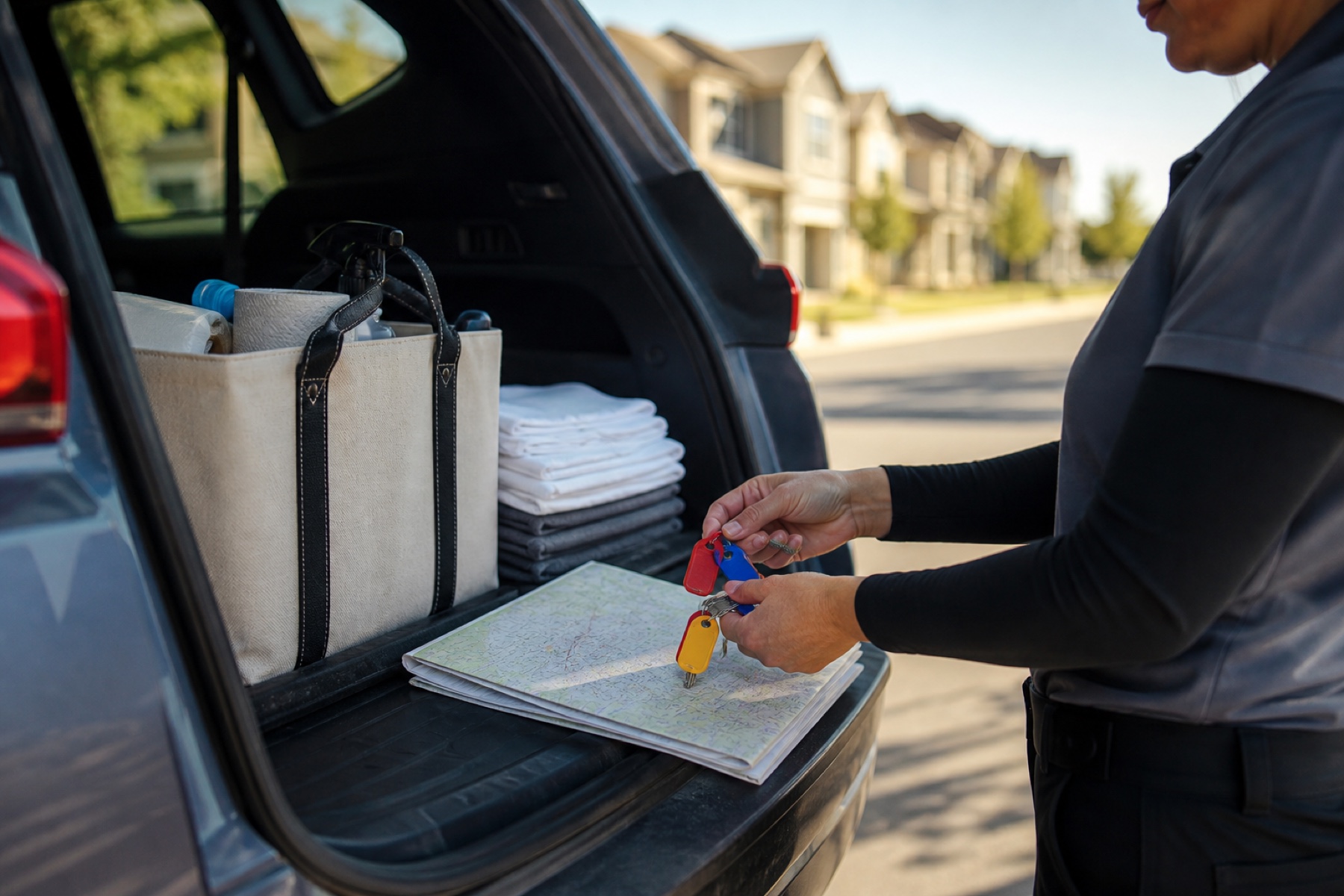
Direct-booking properties can bring steady work, but they also require extra preparation to avoid misunderstandings and missed details. A cleaner-first checklist helps you confirm what’s expected, protect your time, and keep the property owner informed. This guide walks through each step, from acceptance to completion, with practical actions and realistic fallbacks.
PlanAhead helps you organize direct-booked jobs, share messages, and track payments, but it does not replace a booking channel or property-management system. Use the app to store instructions, update status, and protect your workflow, while confirming details directly with the owner when needed.
The checklist below covers confirmation, preparation, on-site work, communication, payment, and post-job review. Each step includes actions you can take in the app or with the owner, plus fallbacks if something goes wrong.
Confirm the Basics Before You Accept
When you receive a direct-booking request, start by verifying the property address, access instructions, and any special notes. Confirm the check-in and check-out times, and ask whether there are any pets, allergies, or safety concerns. Use the workspace messages to request clarification if anything is unclear. A quick confirmation now can prevent a rushed or incomplete cleaning later.
Check the cleaning scope: does the request include a standard clean, a deep clean, or additional tasks like laundry or restocking? Make sure the expected completion time matches your schedule. If the window is too tight, negotiate a later start or additional compensation before you confirm.
- Verify property address and access details
- Ask about pets, allergies, or safety concerns
- Confirm cleaning scope and expected time
- Negotiate window or compensation if needed
Prepare Your Tools and Supplies
Create a quick packing list based on the property’s size and cleaning scope. Include basics like cleaning solutions, microfiber cloths, scrub brushes, and a vacuum. For properties with pets, add extra wipes and odor neutralizers. If the owner provided a supply list, cross-check it with your own inventory to avoid missing items on-site.
Pack a small emergency kit: extra light bulbs, a basic tool set, and a leak repair kit. Even if you rarely need these, having them on hand can save a trip back to your vehicle or a delayed cleanup.
- Build a property-specific packing list
- Include pet-friendly supplies if needed
- Pack an emergency repair kit
- Cross-check owner supply requests
Arrive, Check In, and Document
When you arrive, take a quick photo of the entryway and any visible mess or damage. This helps the owner see the starting condition and reduces later disputes. Use the app to check in: this updates the cleaning status and sends a confirmation to the owner.
If the property looks different from the listing (new furniture, removed carpets, etc.), note the changes in messages. This ensures the owner knows you saw the actual condition and can adjust expectations if needed.
- Take entry photos of key areas
- Check in through the app
- Message any unexpected changes
- Record visible damage or mess
Follow the Turnover Workflow
Start with the task list: vacuum floors, wipe surfaces, clean bathrooms, and sanitize kitchen appliances. Tick off each task as you finish. If a task is unclear or missing supplies, pause and message the owner—this is better than guessing or skipping work.
After the clean, do a quick walkthrough. If anything needs redoing, note it now. Use the app to add completion evidence (photos, notes) before you check out. This gives the owner proof the work was done and helps avoid last-minute requests.
- Complete each task on the list
- Pause for missing supplies or unclear steps
- Do a final walkthrough
- Add completion evidence and notes
Communicate Clearly Throughout
Use the workspace messages for any questions, changes, or updates. Avoid long emails or texts—messages are stored with the cleaning and can be referenced later. If you need to adjust the schedule, propose a new time through the app; this keeps the owner informed and avoids confusion.
If you run into a problem (locked door, missing key, etc.), message the owner immediately. Include photos if helpful. Prompt communication prevents delays and shows professionalism.
- Use app messages for all owner communication
- Propose schedule changes through the app
- Message problems immediately with photos if needed
- Avoid email or text for work-related updates
Handle Payment and Reviews
After checkout, the app shows a payment-due card. If you arranged payment directly, mark it as paid in the app—this updates the status for both you and the owner. If you use PlanAhead’s protected payment, the amount is shown clearly; confirm it matches your agreement before you mark it paid.
If the owner leaves a review request, you can accept or dismiss it. Reviews are optional but can help build your reputation. If a review is negative, use the messages to ask for clarification—this can turn a dispute into a learning moment.
- Check payment status after checkout
- Mark direct payments as paid in the app
- Confirm protected payment amounts
- Accept or dismiss review requests as needed
Review and Adjust After Each Job
After each direct-booking clean, spend a few minutes reviewing what went well and what didn’t. Did you have all the supplies you needed? Were the instructions clear? Did the timing work? Use these notes to update your packing list, standard operating procedures, or communication templates.
If a recurring issue appears (e.g., unclear access instructions), add a reminder to your checklist. Small adjustments now prevent bigger problems later.
- Write a quick post-job review
- Update packing lists and SOPs
- Add reminders for recurring issues
- Adjust communication templates as needed
Limitations and checks
- PlanAhead is not a property-management system or booking channel; it supports scheduling and communication after a booking is confirmed.
- Calendar feeds can be delayed; always confirm urgent changes directly with the owner.
- Assignment and attendance confirmation are separate states; a confirmed cleaning does not guarantee payment or a completed job.
- Directly arranged payments happen outside PlanAhead and are not protected or collected by PlanAhead.
Frequently asked questions
What should I do if the owner doesn’t respond to my message about a missing supply?
Send a polite follow-up after 24 hours. If there’s still no response, note the missing supply in your completion evidence and proceed with the work you can do. Document the issue in messages so the owner sees your effort to resolve it.
How can I protect my time if a direct-booking window is too tight?
Negotiate the start time or ask for additional compensation before you confirm. If the owner can’t adjust, decline the job. It’s better to protect your schedule than risk a rushed or incomplete clean.
Can I use PlanAhead to accept or decline a direct-booking request?
PlanAhead does not handle booking acceptance; it only supports scheduling and communication after a booking is confirmed outside the app. Use your preferred booking channel to accept or decline, then add the job to PlanAhead for scheduling and workspace use.
What if I need to cancel a confirmed direct-booking cleaning?
Message the owner immediately through the workspace, explain the reason, and propose a reschedule if possible. Update the cleaning status in the app to reflect the cancellation. Keep a record of the conversation for future reference.
This article provides general operational guidance. Calendar-feed timing depends on third-party systems; confirm urgent changes directly.